ManageHR is an HR platform built for tech companies with hybrid and remote teams, designed to simplify people management.
ManageHR is an HR platform built for tech companies with hybrid and remote teams, designed to simplify people management.
2023
About the project
Since the Pandemic, many companies, especially tech ones have changed the way they operate by embracing the new hybrid work model, meaning employees working remotely and in the office. In this case study, I’ll talk about a solution that is designed primarily for these companies.
About the project
Since the Pandemic, many companies, especially tech ones have changed the way they operate by embracing the new hybrid work model, meaning employees working remotely and in the office. In this case study, I’ll talk about a solution that is designed primarily for these companies.
My role
I was the only product designer in the project. I did the end to end product design, which I will explain below.
I collaborated with client(platform owner and sponsor), product teams from our team(Kin+Carta) and client team, and with our development team.
My role
I was the only product designer in the project. I did the end to end product design, which I will explain below.
I collaborated with client(platform owner and sponsor), product teams from our team(Kin+Carta) and client team, and with our development team.
Requirements - What the client wants?
The client came with a request for ManageHR - a Human Resources Management Dashboard that will be used by companies with a hybrid work model, by providing an easy way for HR Managers, directors, managers and team leads to manage employee requests, performance, check employee reports, check the overall state of the company and more. Not all of these features were there since the beginning but the main requests from the client were:
A dashboard to manage employees data including personal details, position and payment details
Handling the requests like remote requests, vacation requests and sick leave requests, so allowing employees to request them and also managers to approve or decline them through the dashboard.
Having employees groups like they are in the company structure, for example Design team or Engineering team.
A user friendly interface that will represent what’s happening at the company.
Requirements - What the client wants?
The client came with a request for ManageHR - a Human Resources Management Dashboard that will be used by companies with a hybrid work model, by providing an easy way for HR Managers, directors, managers and team leads to manage employee requests, performance, check employee reports, check the overall state of the company and more. Not all of these features were there since the beginning but the main requests from the client were:
A dashboard to manage employees data including personal details, position and payment details
Handling the requests like remote requests, vacation requests and sick leave requests, so allowing employees to request them and also managers to approve or decline them through the dashboard.
Having employees groups like they are in the company structure, for example Design team or Engineering team.
A user friendly interface that will represent what’s happening at the company.
User Interviews - What do users say?
Even though I use a similar product for HR management every day at my job, I wanted to get to know more about how others use these products, understand their needs and pain points so I can build something that will satisfy these needs. I decided to have one-on-one interviews with users that have different roles, but my main focus was on HR Managers and company directors. I interviewed 2 HR Managers, 5 Team Leads, 2 Tech Heads and 4 employees.
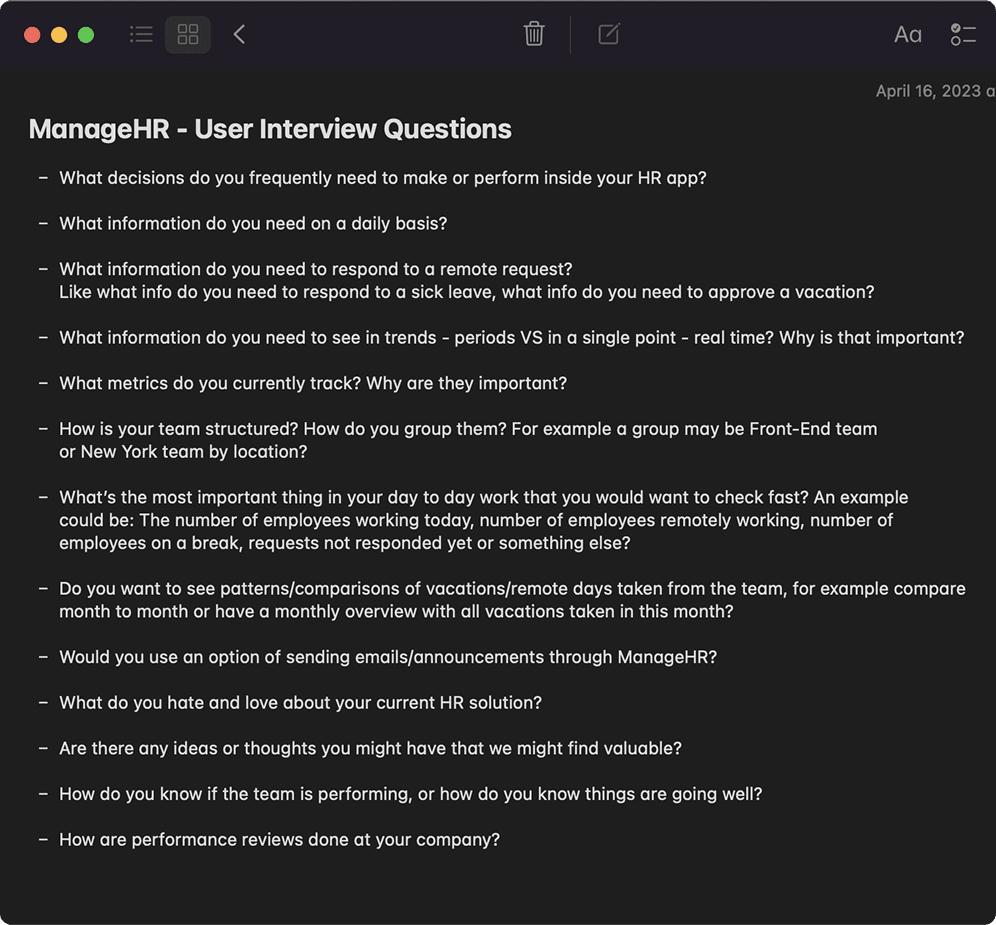
Here’s a list with some of the questions:
User Interviews - What do users say?
Even though I use a similar product for HR management every day at my job, I wanted to get to know more about how others use these products, understand their needs and pain points so I can build something that will satisfy these needs. I decided to have one-on-one interviews with users that have different roles, but my main focus was on HR Managers and company directors. I interviewed 2 HR Managers, 5 Team Leads, 2 Tech Heads and 4 employees.
Here’s a list with some of the questions:
Research - What I learned from user interviews
What I realised was that:
Managers mostly use the app to approve remote & time-off requests, manage employee benefits, update employee information and manage payroll management
Managers daily want to know who’s working and who’s not, how many employees are onsite, how many are remotely working.
Managers want to have project related data in trends or periods.
Managers daily check the status of their employees as a group or individually or events happening
Managers check events happening at the company like workshops, meetings, demos, parties etc.
Managers mostly expected the expected start and return dates for time-off, and a description about sick leaves that don’t last more than 2 days.
Teams were mostly grouped by department/location, but some managers also grouped teams by tech stack or project.
Managers said that they would be open to use the email feature.
The most common complaints about the products they use currently were outdated user interfaces, difficulty reading data.
Positives about their current solutions included easy to use interfaces and third party integrations.
Some managers suggested including more features that helped them get employee feedback.
Employees obviously spend less time using these products.
Employees mostly use these products for submitting time-off requests, check for holidays, access information mostly about time-off balances.
Research - What I learned from user interviews
What I realised was that:
Managers mostly use the app to approve remote & time-off requests, manage employee benefits, update employee information and manage payroll management
Managers daily want to know who’s working and who’s not, how many employees are onsite, how many are remotely working.
Managers want to have project related data in trends or periods.
Managers daily check the status of their employees as a group or individually or events happening
Managers check events happening at the company like workshops, meetings, demos, parties etc.
Managers mostly expected the expected start and return dates for time-off, and a description about sick leaves that don’t last more than 2 days.
Teams were mostly grouped by department/location, but some managers also grouped teams by tech stack or project.
Managers said that they would be open to use the email feature.
The most common complaints about the products they use currently were outdated user interfaces, difficulty reading data.
Positives about their current solutions included easy to use interfaces and third party integrations.
Some managers suggested including more features that helped them get employee feedback.
Employees obviously spend less time using these products.
Employees mostly use these products for submitting time-off requests, check for holidays, access information mostly about time-off balances.
User Personas - Who’s our audience?
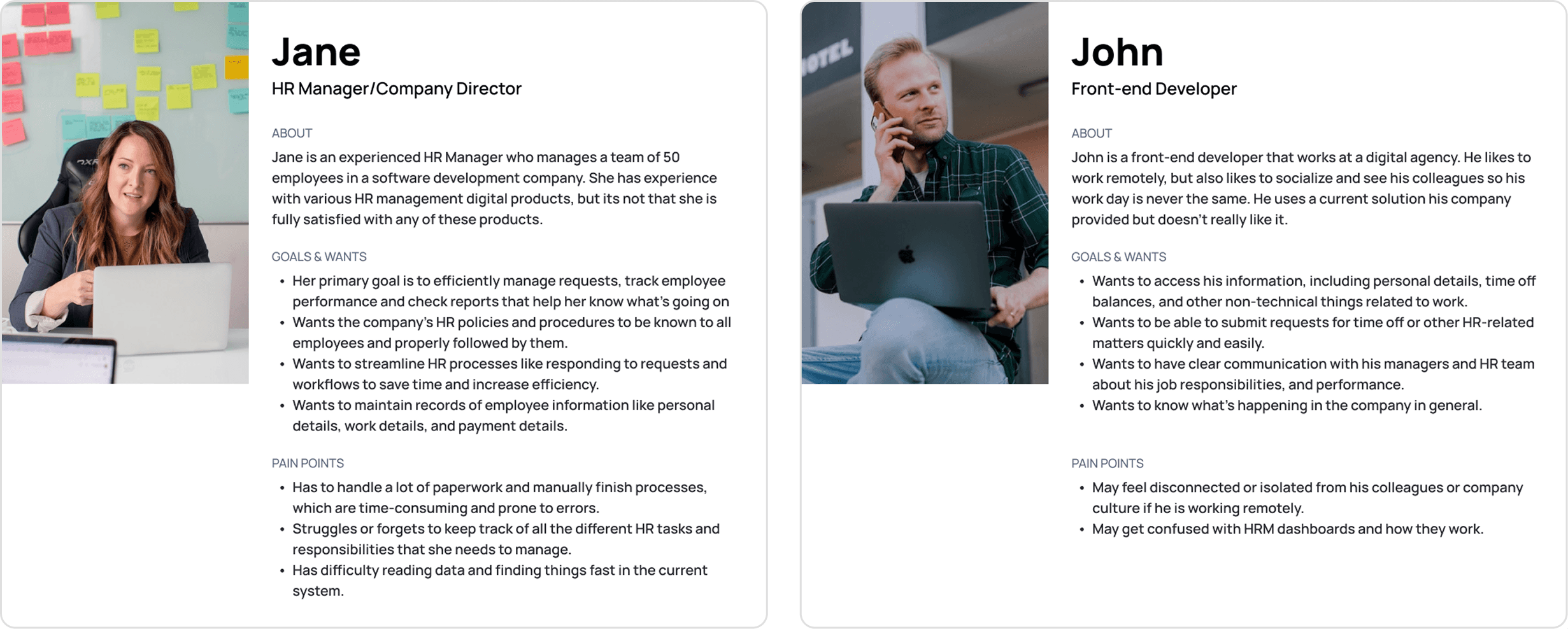
Based on the research, I created two personas that represent my target audience.
-Obviously the first one and also my priority is the Manager role, including HR Managers/directors, Team Leads, so every one that has a team and wants to see more than just their personal details.
-The second one is the regular employee, which is limited on features, but is still a key factor for companies since they have far more employees than managers.
User Personas - Who’s our audience?
Based on the research, I created two personas that represent my target audience.
-Obviously the first one and also my priority is the Manager role, including HR Managers/directors, Team Leads, so every one that has a team and wants to see more than just their personal details.
-The second one is the regular employee, which is limited on features, but is still a key factor for companies since they have far more employees than managers.
Competitive Analysis - What do our competitors do?
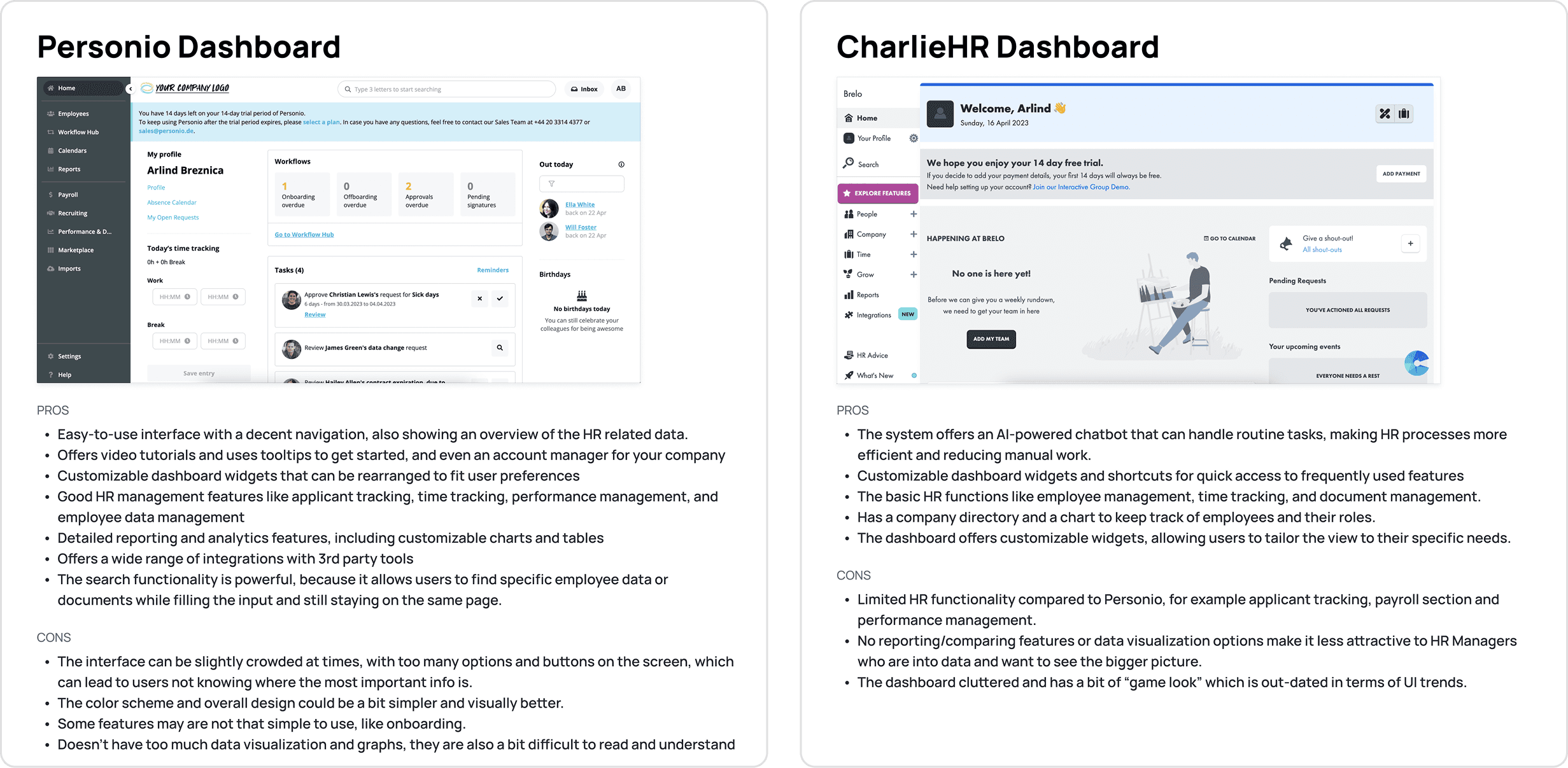
After gathering more info about the target audience, I decided to understand how similar products are designed and what features they have. So I did a competitive analysis on two well known HR management software platforms: Personio and CharlieHR. Even though I didn’t use their dashboards for a long time, it was enough to get an understanding of what their strong points are and if they’re lacking something. Here’s what I found out:
Competitive Analysis - What do our competitors do?
After gathering more info about the target audience, I decided to understand how similar products are designed and what features they have. So I did a competitive analysis on two well known HR management software platforms: Personio and CharlieHR. Even though I didn’t use their dashboards for a long time, it was enough to get an understanding of what their strong points are and if they’re lacking something. Here’s what I found out:
Define - What features do we include and why?
After learning more about what the users need and what we can learn from other similar products, I started directly with the dashboard main page, where the users land after they log in. First I decided to propose some extra features to the client and the team, to define what we’re going to include before starting with design.
I decided to include these functions & features based on employees goals & pain points:
To help employees have a single place with easy access to documents related to work like contracts, policies etc, I proposed to Include the document section for each employee, so they will have their own “document database”, which can be also be accessed by managers.
To make employees feel connected and know what’s going on in the company, I decided to have a calendar section in the dashboard, which will show relevant info like birthdays and other events happening in the company like workshops, meetings, parties etc.
To make it easier for them to plan their day, I will include Google Calendar and MTeams events for employees in that calendar section so they have their full agenda there.
From managers goals & pain points:
To help managers have a fast overview of what’s happening, I decided to include the same calendar section, but the manager will have more info there like: employees working that day, employees working remotely that day, sick leaves, workshops etc. They will also have their Google Calendar and MTeams, so they can see their agenda, just like the regular employees.
To let them see what they want for a specific team or indivudual, I included some custom graphs.
To let them know the current state of the company, I included real-time data cards for employees that are: working, vacationing, remotely working, in a sick leave.
To help them see the bigger picture, I included a report card that shows the trend of employees in the office for a selected time, and also for days ahead.
To allow them to communicate with the team within the product, I included the “Send email” feature, which will allow managers to send emails directly to an individual, to a specified group or to the whole company.
To help them keep track easier, and also not forget, I added a notification tab in the app, which will allow managers to check notifications in chronological order.
Define - What features do we include and why?
After learning more about what the users need and what we can learn from other similar products, I started directly with the dashboard main page, where the users land after they log in. First I decided to propose some extra features to the client and the team, to define what we’re going to include before starting with design.
I decided to include these functions & features based on employees goals & pain points:
To help employees have a single place with easy access to documents related to work like contracts, policies etc, I proposed to Include the document section for each employee, so they will have their own “document database”, which can be also be accessed by managers.
To make employees feel connected and know what’s going on in the company, I decided to have a calendar section in the dashboard, which will show relevant info like birthdays and other events happening in the company like workshops, meetings, parties etc.
To make it easier for them to plan their day, I will include Google Calendar and MTeams events for employees in that calendar section so they have their full agenda there.
From managers goals & pain points:
To help managers have a fast overview of what’s happening, I decided to include the same calendar section, but the manager will have more info there like: employees working that day, employees working remotely that day, sick leaves, workshops etc. They will also have their Google Calendar and MTeams, so they can see their agenda, just like the regular employees.
To let them see what they want for a specific team or indivudual, I included some custom graphs.
To let them know the current state of the company, I included real-time data cards for employees that are: working, vacationing, remotely working, in a sick leave.
To help them see the bigger picture, I included a report card that shows the trend of employees in the office for a selected time, and also for days ahead.
To allow them to communicate with the team within the product, I included the “Send email” feature, which will allow managers to send emails directly to an individual, to a specified group or to the whole company.
To help them keep track easier, and also not forget, I added a notification tab in the app, which will allow managers to check notifications in chronological order.
Sketch & Design Iterations
After defining the features that will be included, I started with the dashboard main page - Overview page.
For me, this page is almost the half of the dashboard, because it’ll create an impression for the whole dashboard, since the first time a user uses the product.
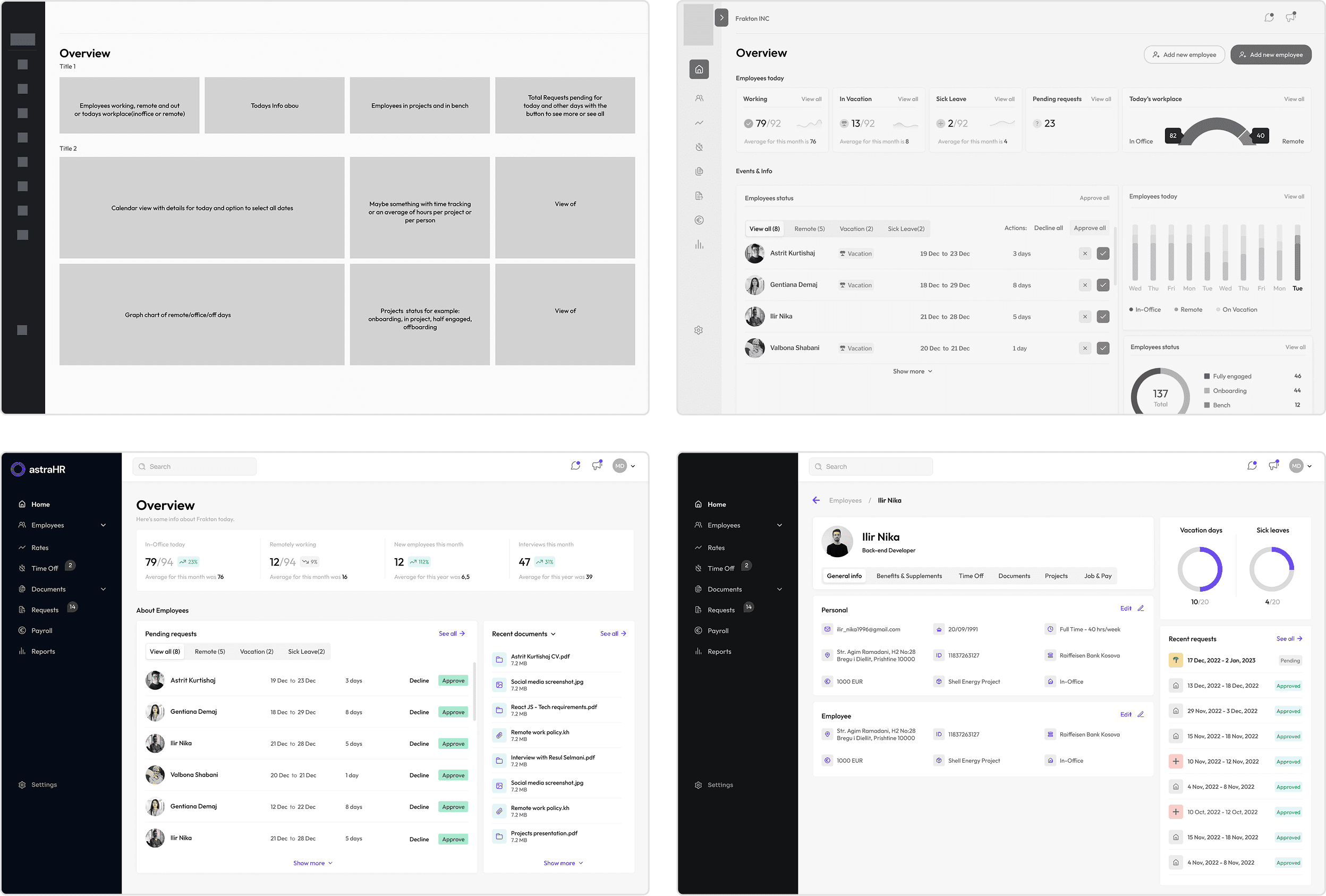
Iterations and iterations... Of course, lot of them and these are just a small percentage of them..
Sketch & Design Iterations
After defining the features that will be included, I started with the dashboard main page - Overview page.
For me, this page is almost the half of the dashboard, because it’ll create an impression for the whole dashboard, since the first time a user uses the product.
Iterations and iterations... Of course, lot of them and these are just a small percentage of them..
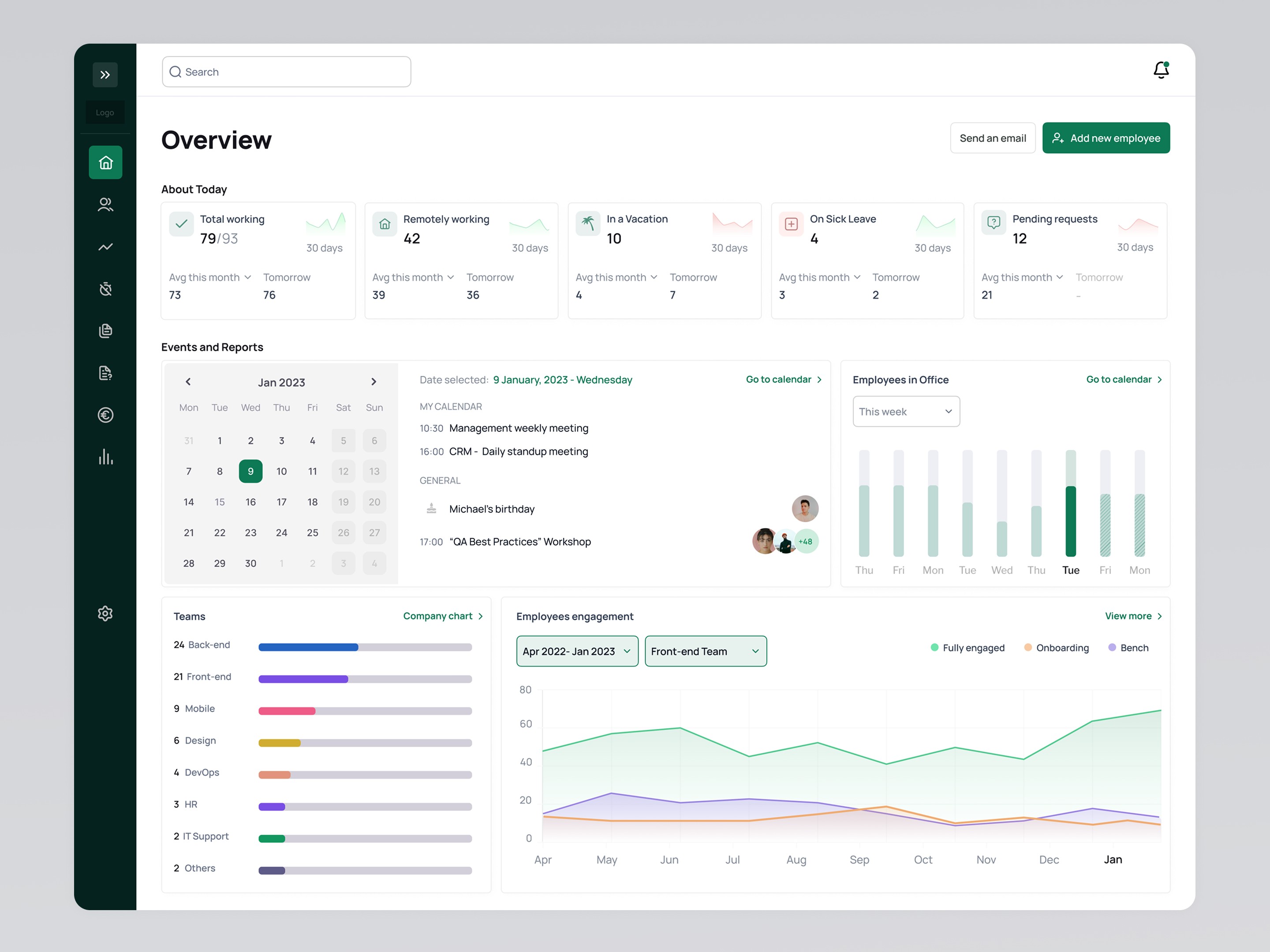
Overview Page( Main dashboard page)
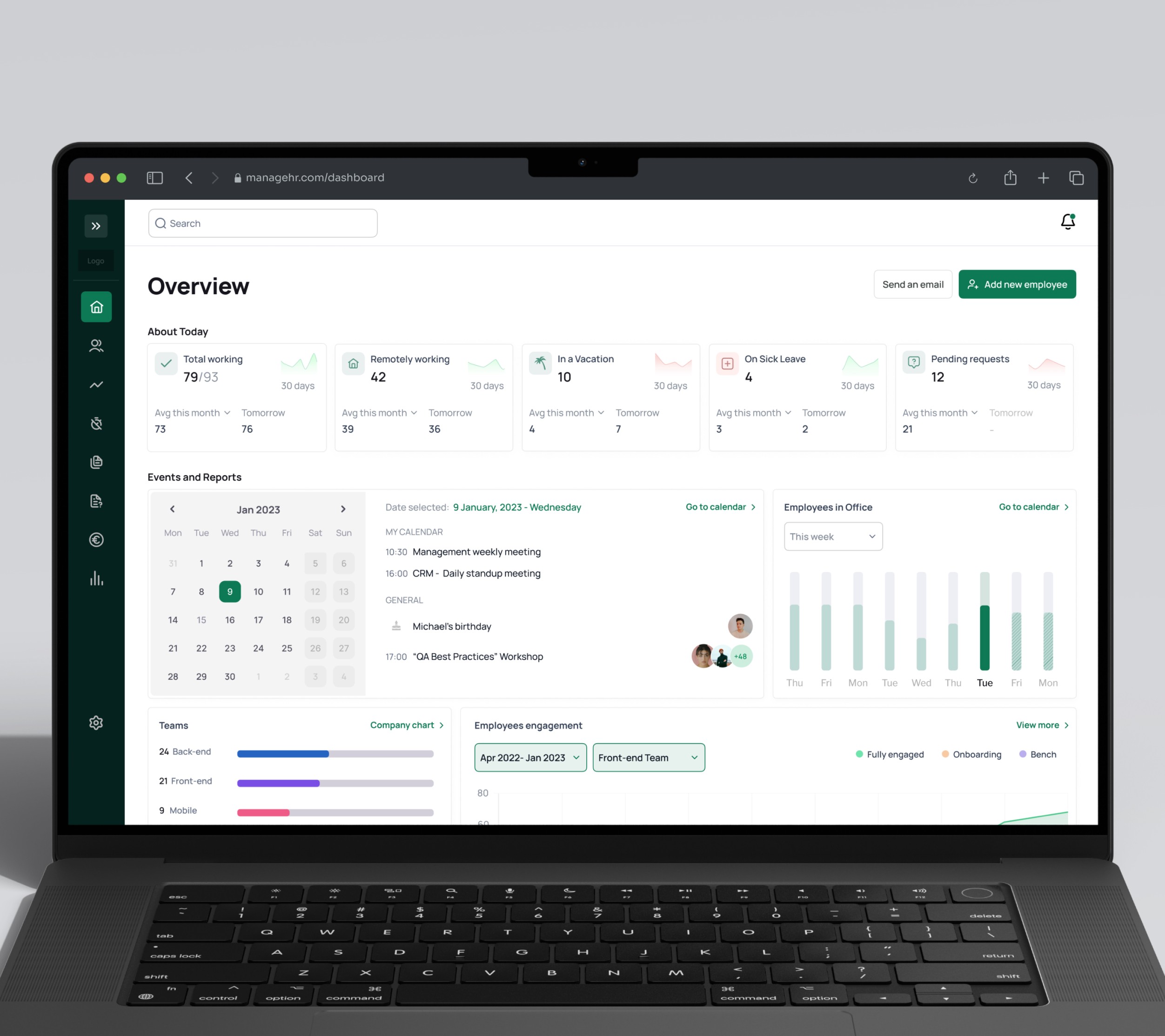
This is the most important page of the product, because users land here, get the first impression and if designed right, they spend most of the time here because they can quickly do things directly and get the information they need without spending time looking into other pages. Here we have the dashboard view from the manager, which has far more features than the employee view.
Here’s what I included here and why:
“Send an email” button is there for the manager when they want to quickly send an email to a employee, group or the whole company, along with the “Add new employee button” which allows them to quickly add new employees from the main page.
“About today“section includes the most important real-time data that the employees wanted to know about their company.
Each of these real-time cards have their current number of employees and an average info with a text button that lets the users change the period of time they want to have the average. The periods for average are: this week, this month, last 3 months, last 6 months and this year. They also have a chart which is not very detailed but its enough to tell users the trend for the selected period.
“Events and reports” section is all about planning and getting more info at the first glance.
The calendar card - this is the card where the user can select a date from the calendar to see whats happening that day. Of course, the default date is always the current day. This card shows personal meetings, including the integrations with Google and Microsoft emails, birthdays and also other events happening at the company right now. This way the managers can now feel that they know whats going on with the company every day, and employees can feel more like a part of the team and not fear like they’re missing out on something.
Employees in Office - this card is about checking the trend of remote workers, users can select the period they want to check. There are also 2 days in the future that tells the current number of employees that didn’t make a request for remote work for those days, so the manager gets a rough overview of that.
Teams - this card tells the current number of employees for each team, giving the users a general overview of how the company is separated.
Employees engagement - based on the research, reports were very important for our managers. This card lets the manager choose the team they want to check and the time period. This is not the most detailed one because I plan to have a specific page for the reports in the future.
Overview Page( Main dashboard page)
This is the most important page of the product, because users land here, get the first impression and if designed right, they spend most of the time here because they can quickly do things directly and get the information they need without spending time looking into other pages. Here we have the dashboard view from the manager, which has far more features than the employee view.
Here’s what I included here and why:
“Send an email” button is there for the manager when they want to quickly send an email to a employee, group or the whole company, along with the “Add new employee button” which allows them to quickly add new employees from the main page.
“About today“section includes the most important real-time data that the employees wanted to know about their company.
Each of these real-time cards have their current number of employees and an average info with a text button that lets the users change the period of time they want to have the average. The periods for average are: this week, this month, last 3 months, last 6 months and this year. They also have a chart which is not very detailed but its enough to tell users the trend for the selected period.
“Events and reports” section is all about planning and getting more info at the first glance.
The calendar card - this is the card where the user can select a date from the calendar to see whats happening that day. Of course, the default date is always the current day. This card shows personal meetings, including the integrations with Google and Microsoft emails, birthdays and also other events happening at the company right now. This way the managers can now feel that they know whats going on with the company every day, and employees can feel more like a part of the team and not fear like they’re missing out on something.
Employees in Office - this card is about checking the trend of remote workers, users can select the period they want to check. There are also 2 days in the future that tells the current number of employees that didn’t make a request for remote work for those days, so the manager gets a rough overview of that.
Teams - this card tells the current number of employees for each team, giving the users a general overview of how the company is separated.
Employees engagement - based on the research, reports were very important for our managers. This card lets the manager choose the team they want to check and the time period. This is not the most detailed one because I plan to have a specific page for the reports in the future.
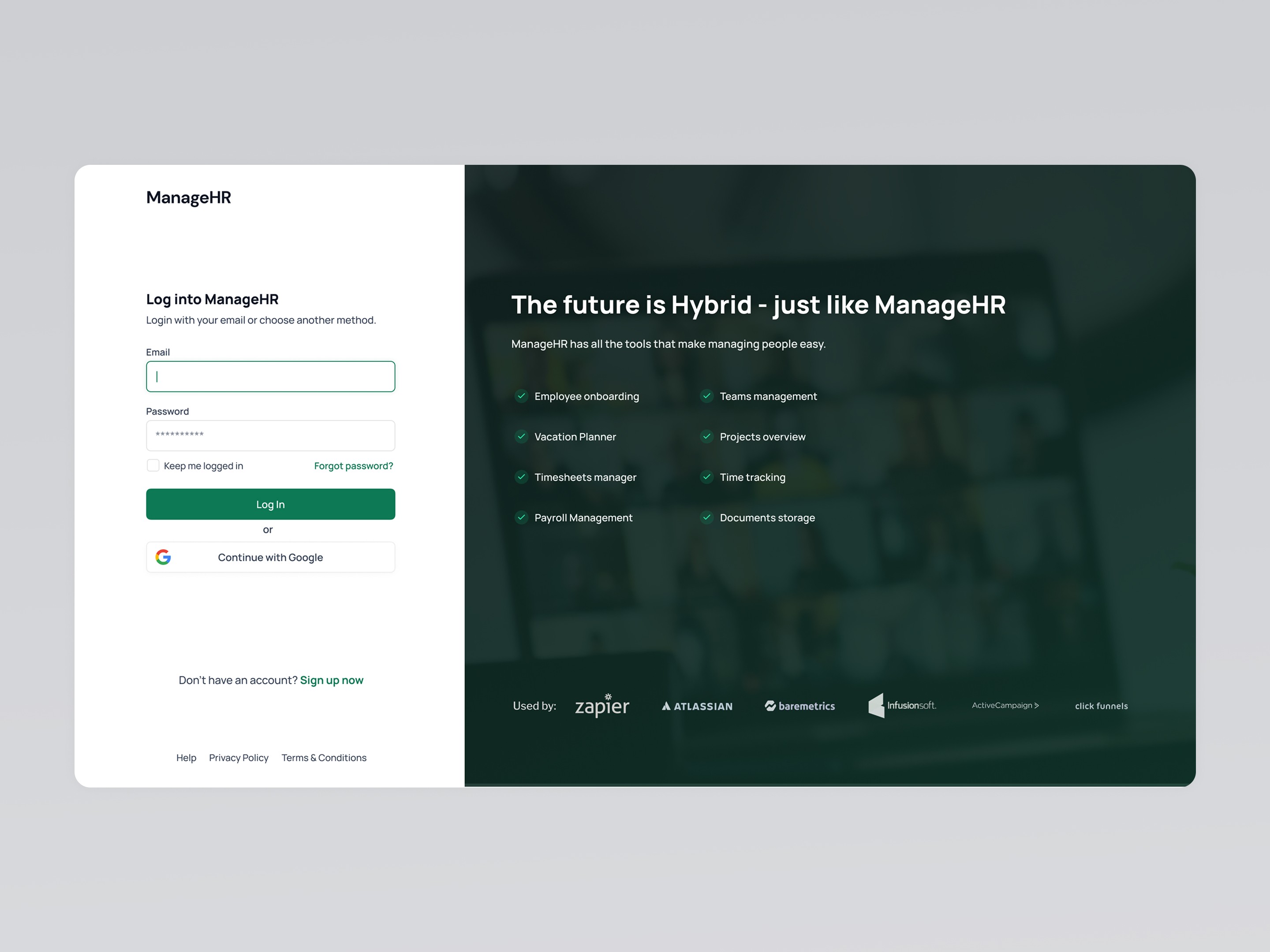
Login
The login page includes the usual login form with the option of logging in with Google Account and signing up.
In the right part of the page, I have used the space to list some of the features that make ManageHR a good solution, because there can be users who just came from the landing page of the product or another place and don’t have an account. I also added a section to show some of the companies that use this product to start building some trust on the product.
Login
The login page includes the usual login form with the option of logging in with Google Account and signing up.
In the right part of the page, I have used the space to list some of the features that make ManageHR a good solution, because there can be users who just came from the landing page of the product or another place and don’t have an account. I also added a section to show some of the companies that use this product to start building some trust on the product.
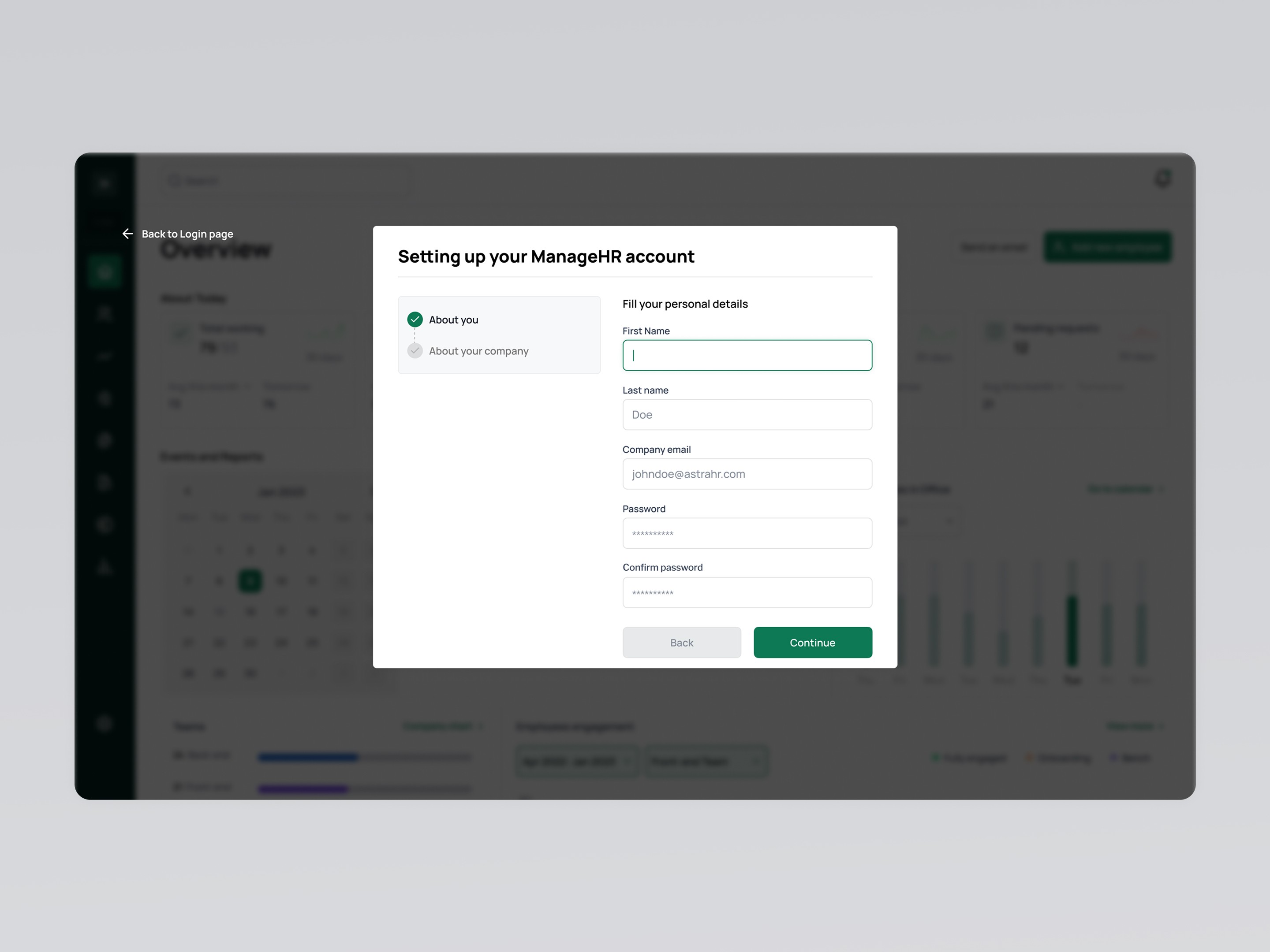
Signing up and Setting up
The SIGN UP NOW button on the Login Page leads us to this page. To make it easier for the new potential users to check the product and use its features, I have only used some of the most important information to sign up. This way, the users are not going to get bored typing information, and they will also know the form is going to close quickly, because the form tells them that there are only 2 steps.
Signing up and Setting up
The SIGN UP NOW button on the Login Page leads us to this page. To make it easier for the new potential users to check the product and use its features, I have only used some of the most important information to sign up. This way, the users are not going to get bored typing information, and they will also know the form is going to close quickly, because the form tells them that there are only 2 steps.
Onboarding
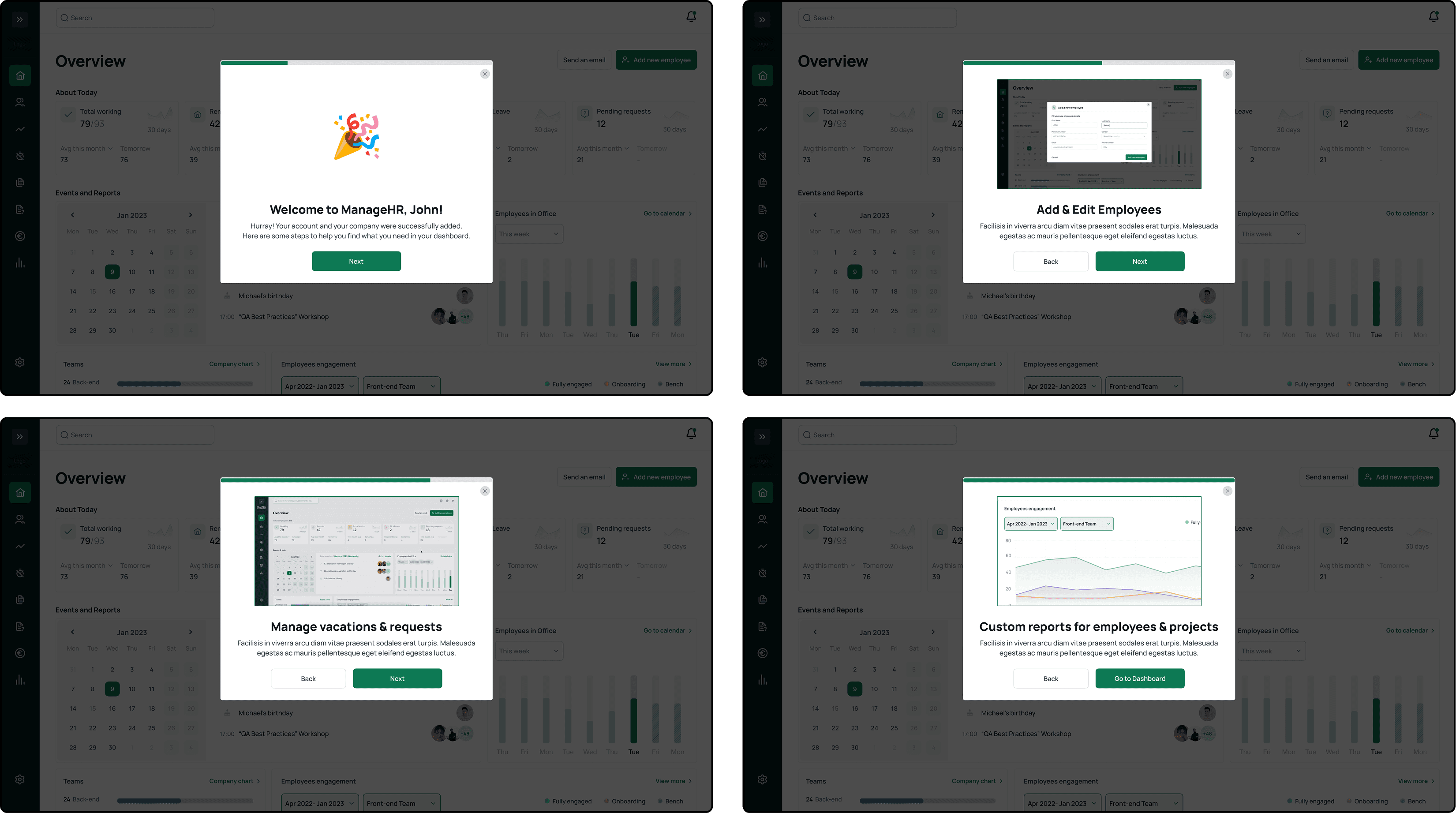
Research says that onboarding is one of the most important parts of a dashboard, if not the most important. In the first pages, I tried to show some of the features, so the user will get how powerful the product is before starting to use it.
Onboarding
Research says that onboarding is one of the most important parts of a dashboard, if not the most important. In the first pages, I tried to show some of the features, so the user will get how powerful the product is before starting to use it.
Onboarding tooltips
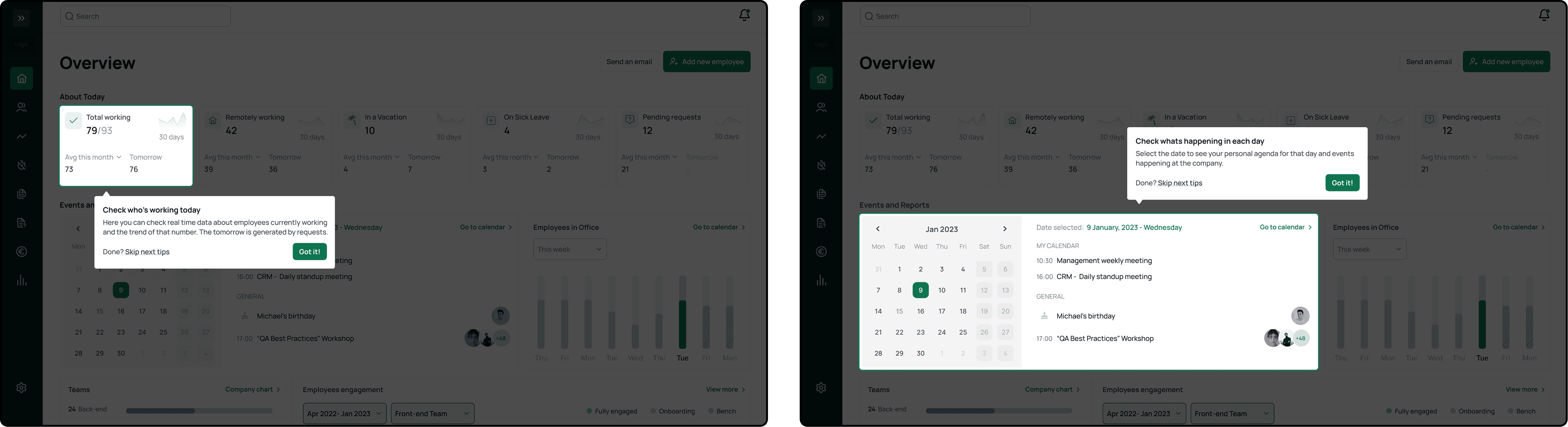
Tooltips are a good way of showing the users how things work, especially in the first-time. I used these tooltips to show the most important things and let the users know how they work. These tooltips are going to be used in similar situations.
Onboarding tooltips
Tooltips are a good way of showing the users how things work, especially in the first-time. I used these tooltips to show the most important things and let the users know how they work. These tooltips are going to be used in similar situations.
Employee( Manager view)
The managers want to have every detail of their employees n one place, which is this page. The page includes different tabs, this one is the Overview, which has many relevant information for the manager, including personal information, benefits, devices. It has a section about the current state of this specific employee that tells current status, remaining off-days, the team of the user, projects involved in, documents and reports about work & projects.
Employee( Manager view)
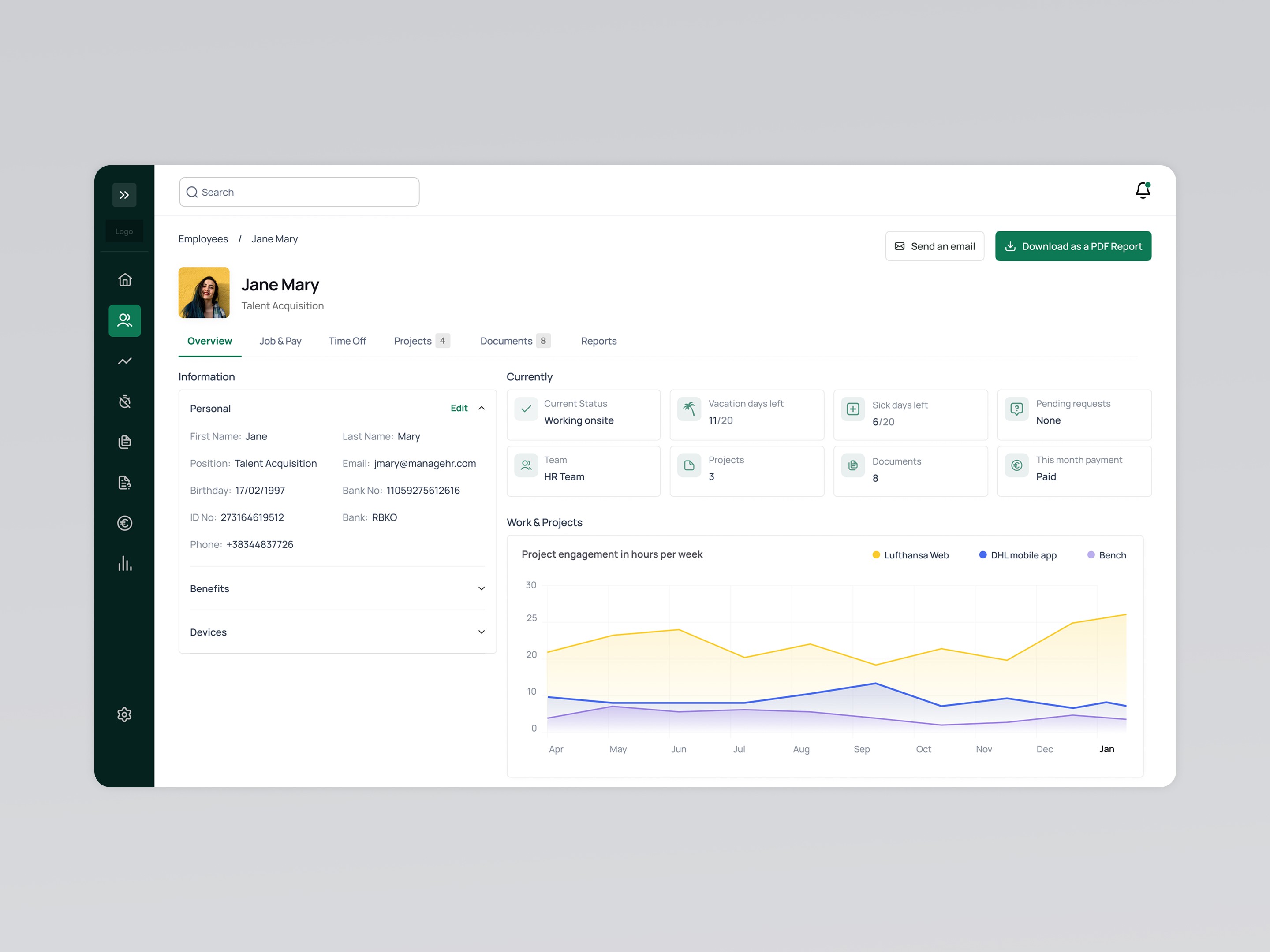
The managers want to have every detail of their employees n one place, which is this page. The page includes different tabs, this one is the Overview, which has many relevant information for the manager, including personal information, benefits, devices. It has a section about the current state of this specific employee that tells current status, remaining off-days, the team of the user, projects involved in, documents and reports about work & projects.
My Requests( Employee view)
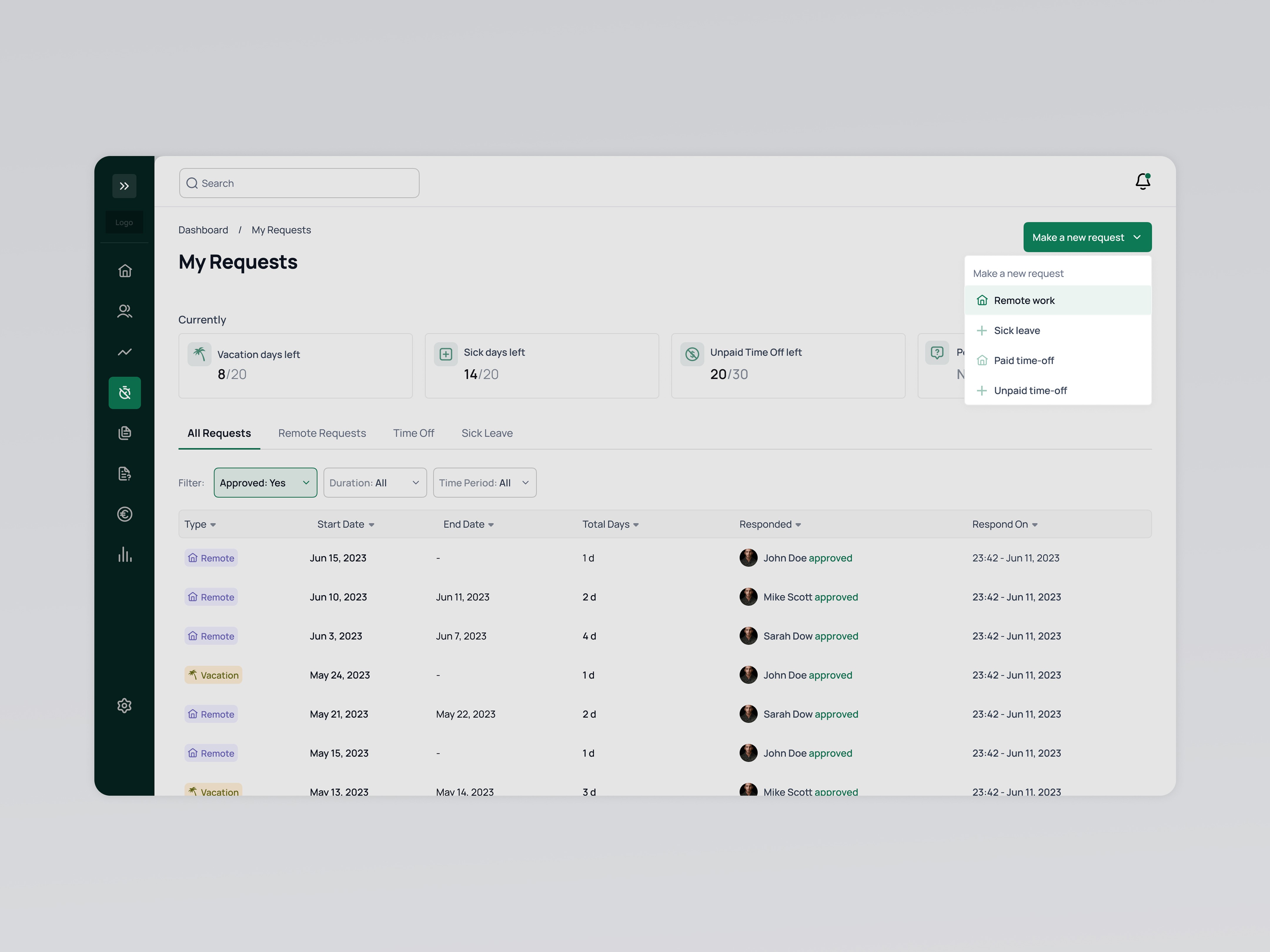
Based on our research, this page is one the most important ones for the employees. Here they can see current status of their remaning days for each type of time-off, number of pending remote requests. They can also switch between request types and see their previous requests and their details, which they can filter by duration, time period or respond. The users can make a new request by clicking the button on the top right corner and choose the type of the request there. After that, a simple modal shows which asks them the dates and a comment about that request.
My Requests( Employee view)
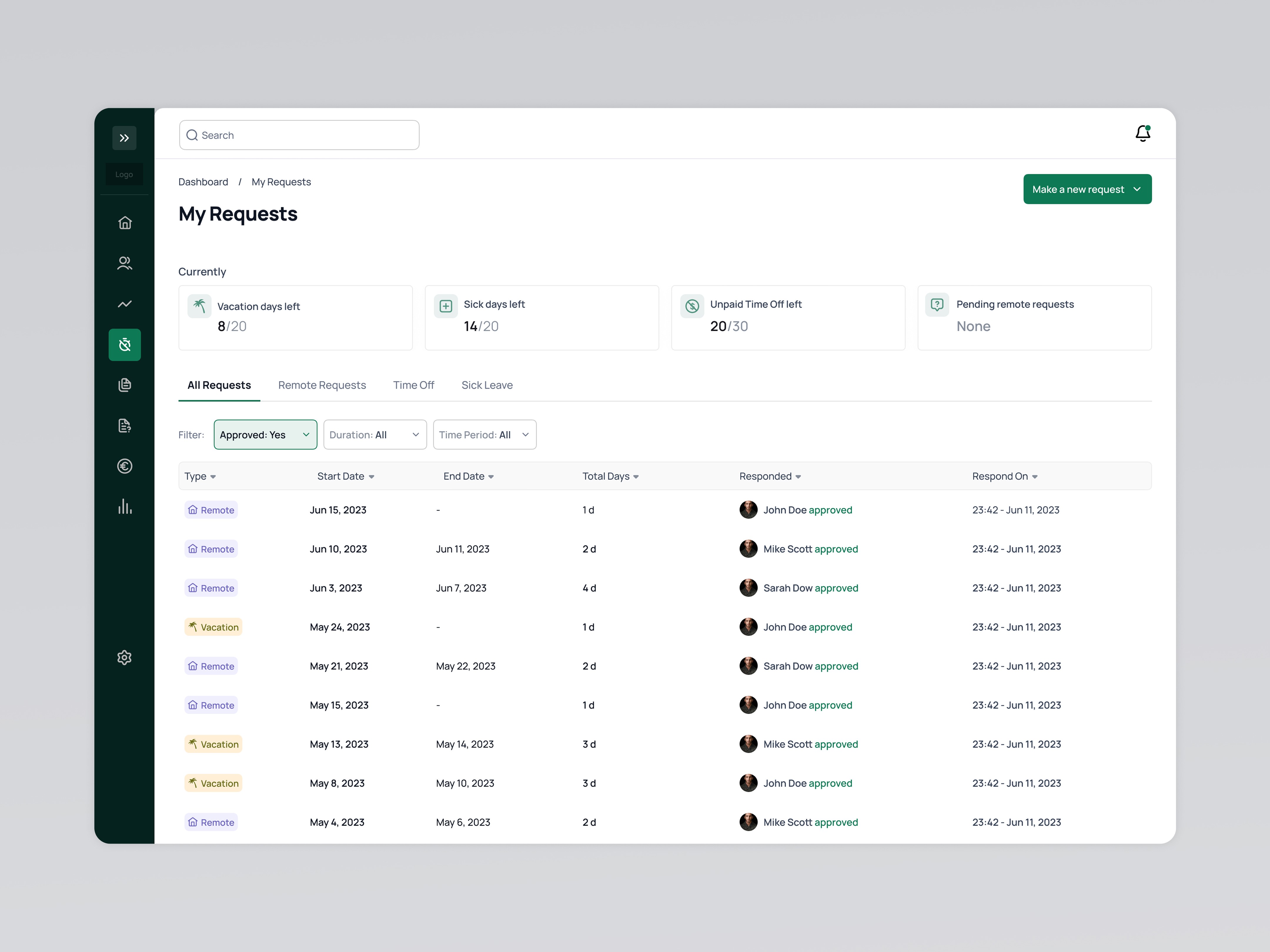
Based on our research, this page is one the most important ones for the employees. Here they can see current status of their remaning days for each type of time-off, number of pending remote requests. They can also switch between request types and see their previous requests and their details, which they can filter by duration, time period or respond. The users can make a new request by clicking the button on the top right corner and choose the type of the request there. After that, a simple modal shows which asks them the dates and a comment about that request.
Quick Guide
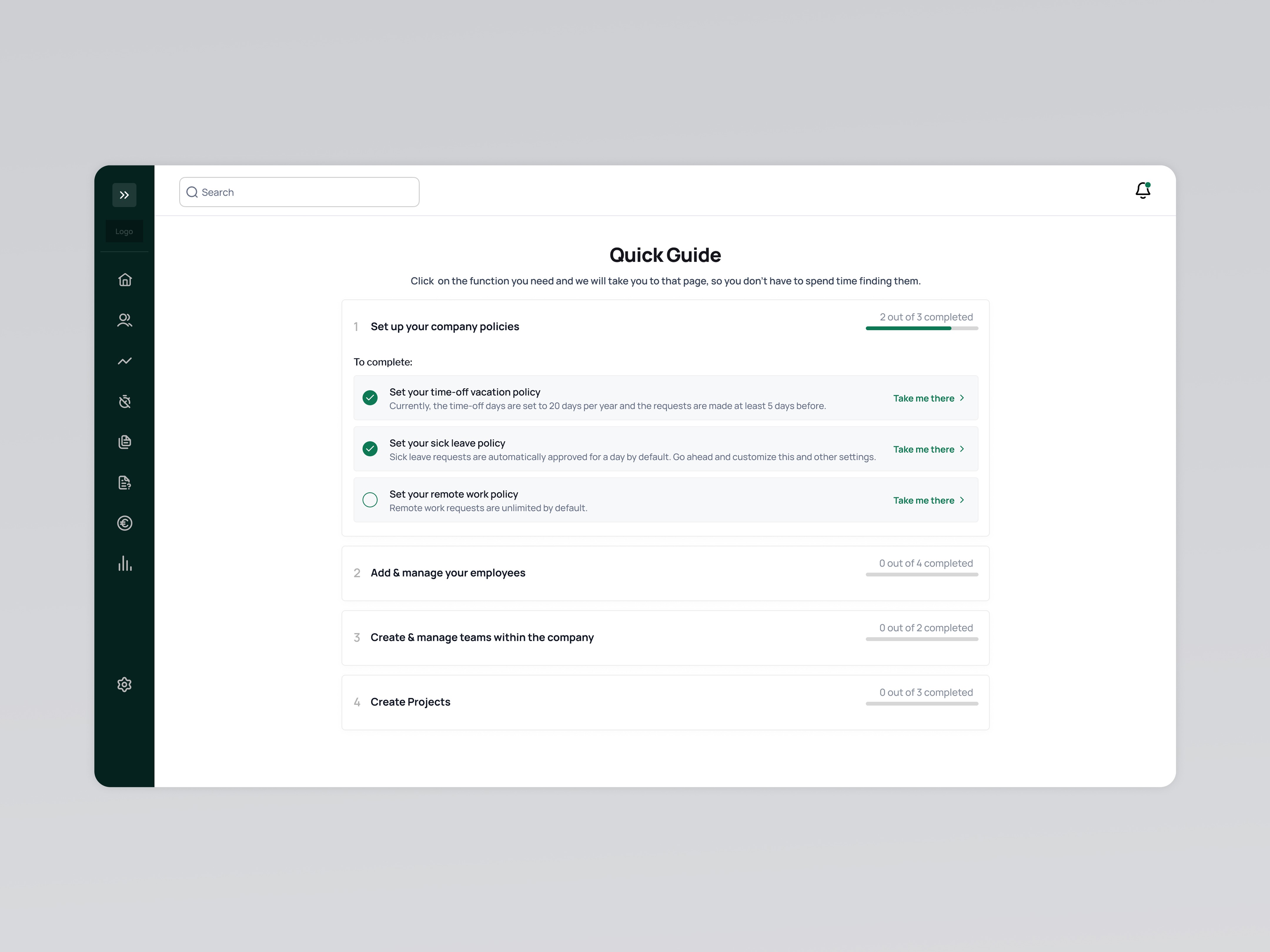
To make it even easier for the users to find things and actions, I decided to create a simple page that I called “Quick Guide”. This page has some steps which are ordered for a better onboarding and understanding of the platform, but they can be clicked even if the previous one are not finished. Each step has the description of the action and a button to take the user there directly.
Quick Guide
To make it even easier for the users to find things and actions, I decided to create a simple page that I called “Quick Guide”. This page has some steps which are ordered for a better onboarding and understanding of the platform, but they can be clicked even if the previous one are not finished. Each step has the description of the action and a button to take the user there directly.
Component Library
Wanna talk about an idea that has been on your mind?
You don't know how to start, or just wanna have a chat?
I'm always interested in building something cool and meaningful..
Wanna talk about an idea that has been on your mind?
I'm always interested in building something cool and meaningful..